LogoNanoPhoto.AI
  • H3 Max Turbo
  • Nano Banana
  • Video Reverse
  • Pricing
Home/AI hairstyle changer

A little change. A whole new look.

AI hairstyle changer

The haircut you’re thinking about. On the face you know.

Upload a portrait, pick a cut, and see a new version of you before the salon.

01 / YOUR PHOTO

One face, good light, hair in view. A front-facing photo works best.

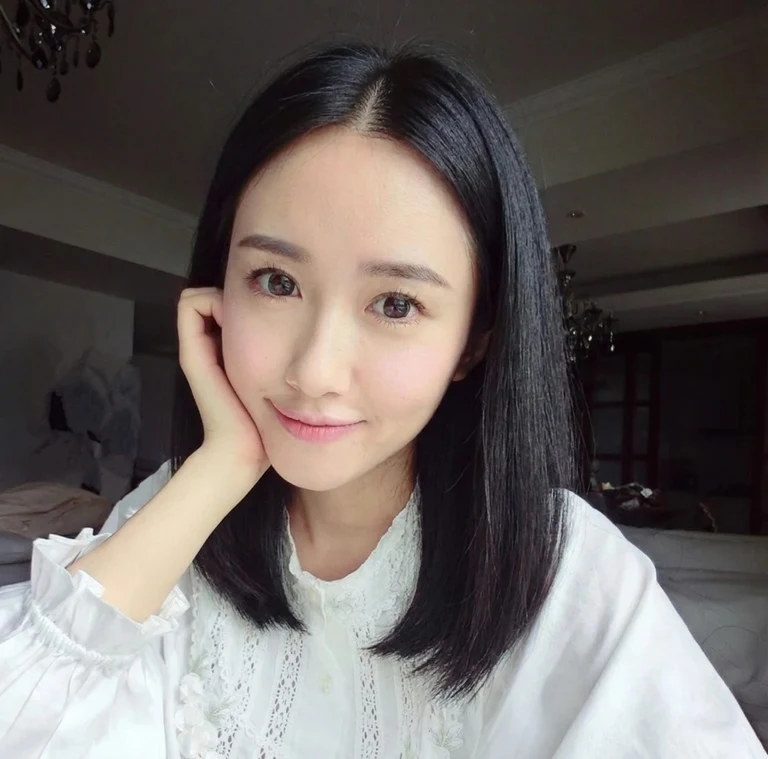
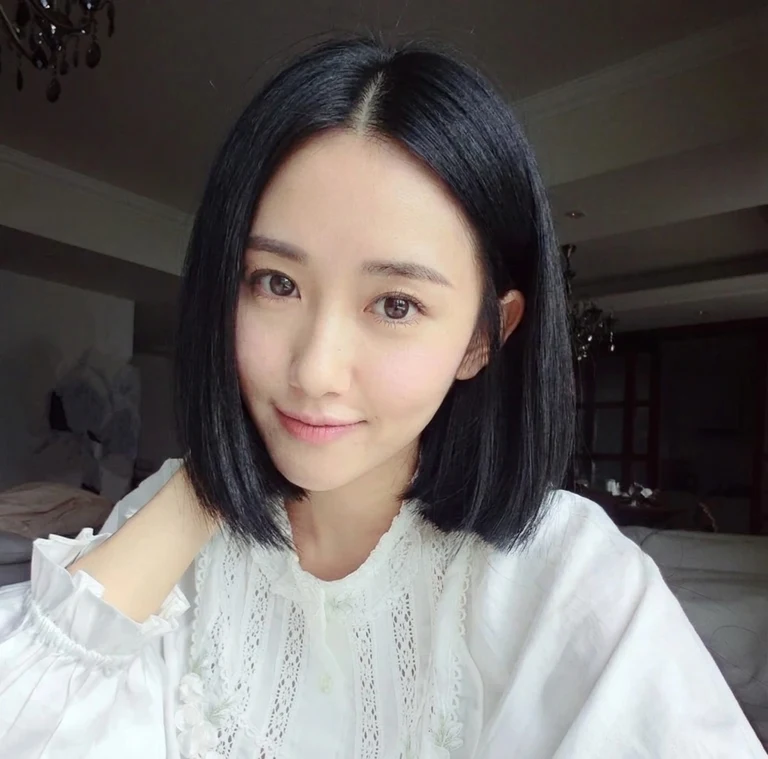
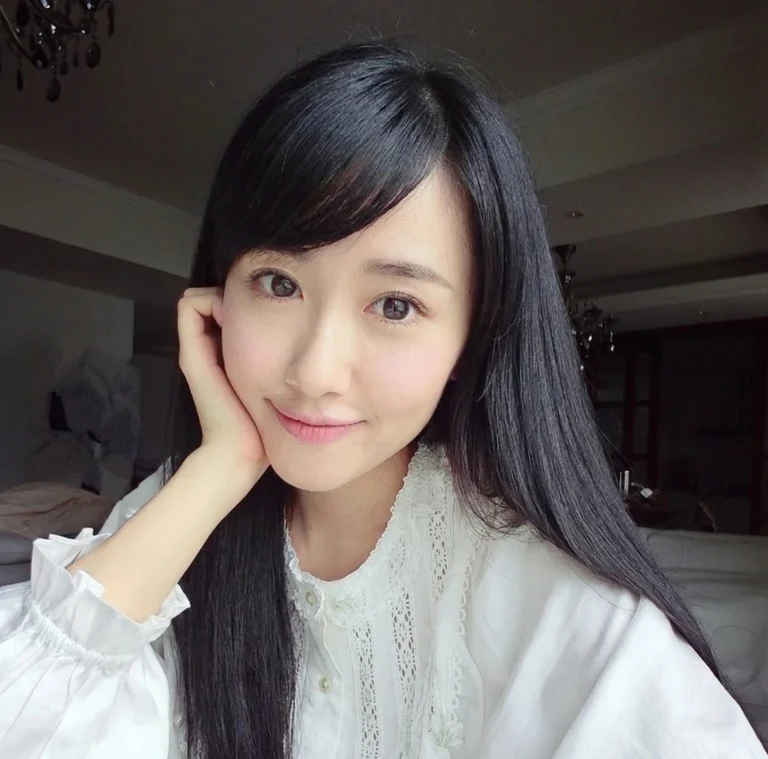
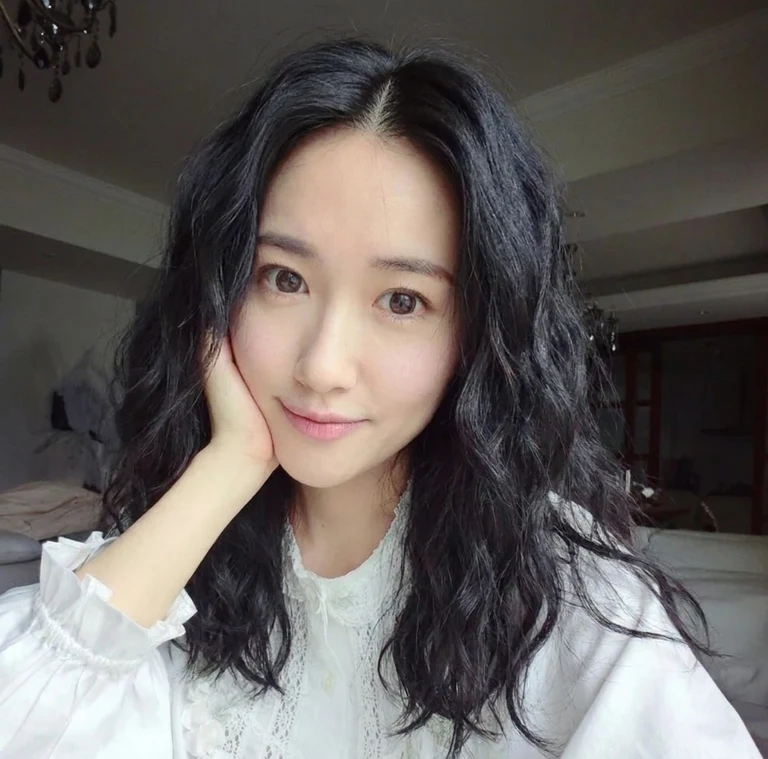
Classic bob hairstyle on the sample portraitOriginal portrait with long straight dark hairExample preview · Classic bob
OriginalAI preview

Move the slider to compare. Arrow keys work, too.

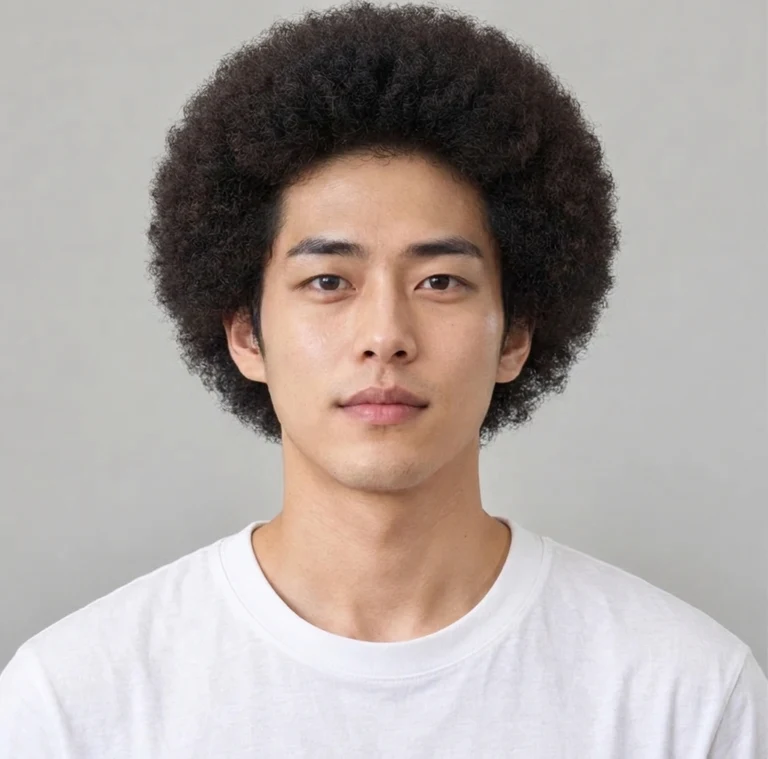
Women’s looks use our female model; men’s looks use our male model. Compare each cut with the matching original portrait.

02 / PREVIEW YOUR NEXT LOOK

Tap any look to preview it. Browsing examples uses no credits.

24 looks
1 / 3

Selected: Classic bob · Chin length, soft ends

2 credits per preview · sign-in required

Add a photo or use the example to get started.

Credits are reserved before editing and returned if the edit fails.

AI editing uploads your photo for processing. Use only photos you have permission to edit. Privacy Policy

Women’s examples↓Men’s examples↓All 24 looks↓Photo tips↓

WOMEN / LENGTH, FRINGE & SHAPE

See a different frame for your face.

Explore women’s hairstyle ideas with the AI hairstyle changer, using one consistent portrait. Keeping the person, pose and background similar makes it easier to notice changes in length, volume and the shape around the face.

01 / Classic bob

Going shorter without guessing the whole look.

A classic bob makes a useful first comparison when you are thinking about taking off length. In this example, the longer original hair becomes a compact shape around the jaw. The change is easy to see at the ends, beside the cheeks and where the hair meets the neck.

What to compare

Move the slider slowly across the face and shoulders. Notice how much of the neck becomes visible and where the ends sit relative to the chin. Then compare a long bob with a pixie cut to separate a small change in length from a much shorter silhouette.

Save the version that interests you as a conversation starter. A preview shows a possible shape; your own texture, density and daily styling will affect the finished haircut.

Try a look on your photo ↗
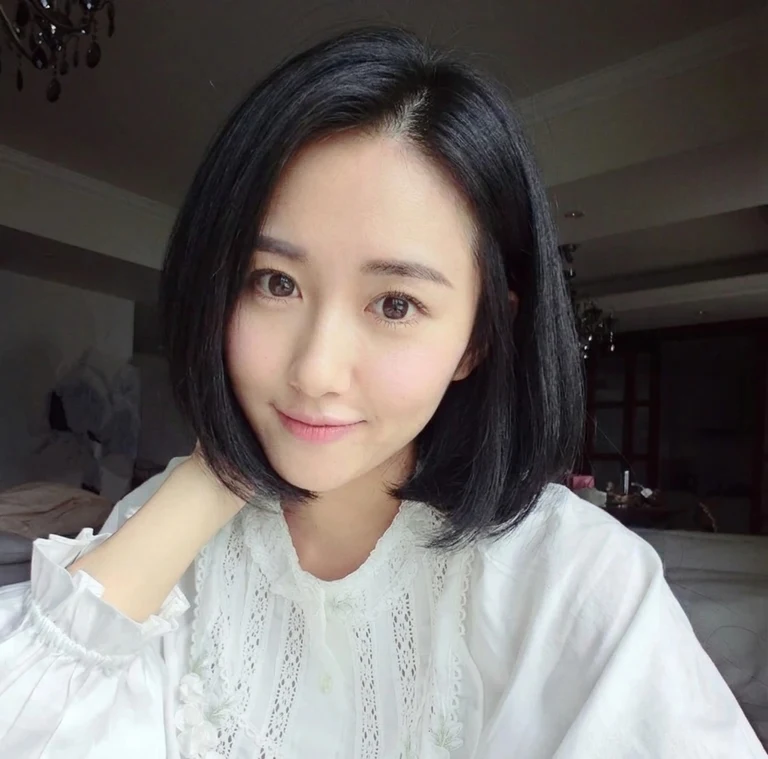
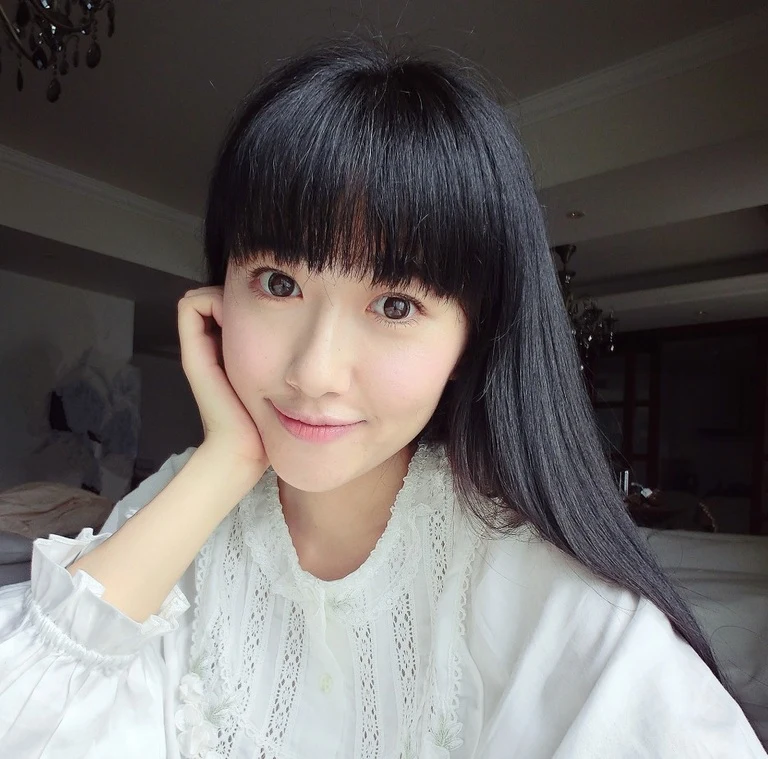
Classic bob hairstyle on the sample portraitOriginal portrait with long straight dark hairClassic bob
OriginalAI preview

Move the slider to compare. Arrow keys work, too.

Chin length, soft ends

Two more directions

Long bob on our female sample model

Long bob

Keep more length around the shoulders with a long bob. Compare its lower edge with the chin-length version before deciding how short to go.
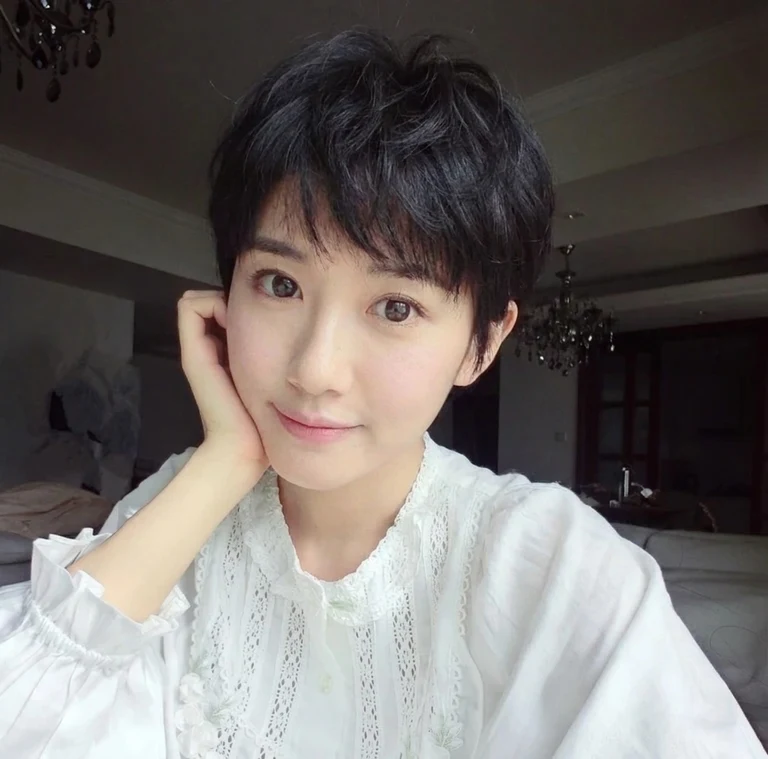
Pixie cut on our female sample model

Pixie cut

A pixie exposes more of the ears and neck. Use it to explore a bigger change in outline rather than treating every short cut as interchangeable.
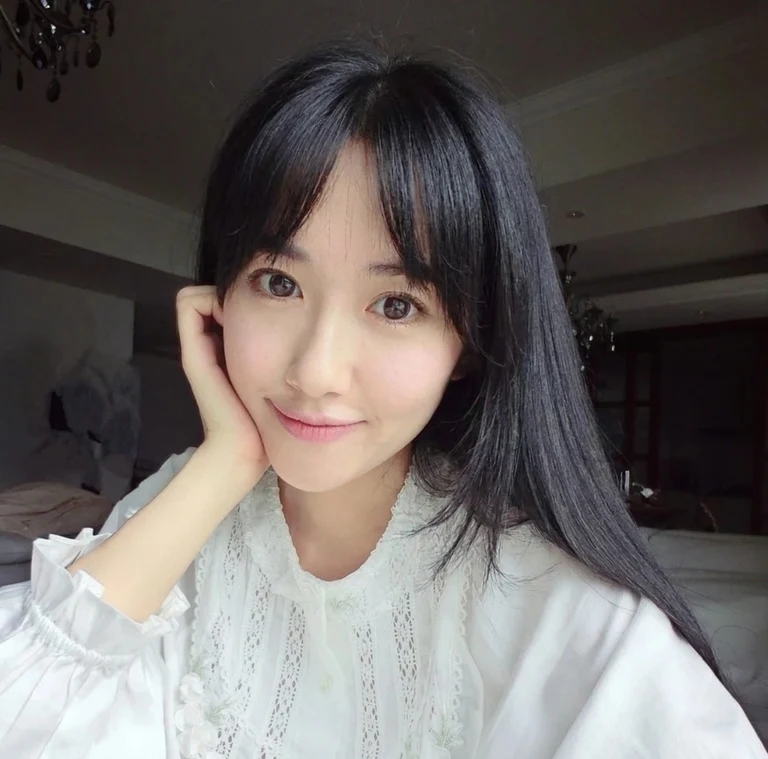
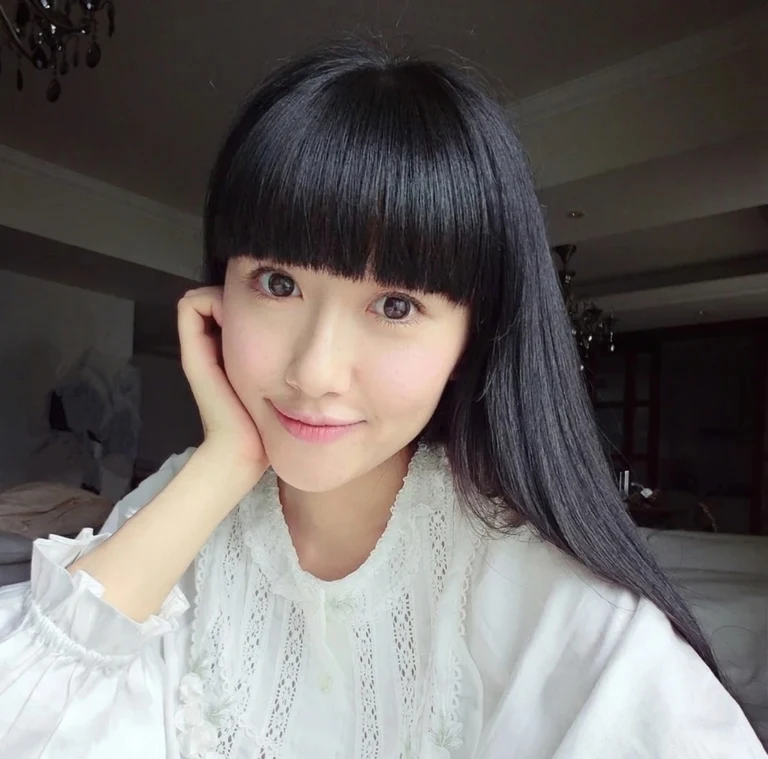
02 / Curtain bangs

Find the fringe you actually want to try.

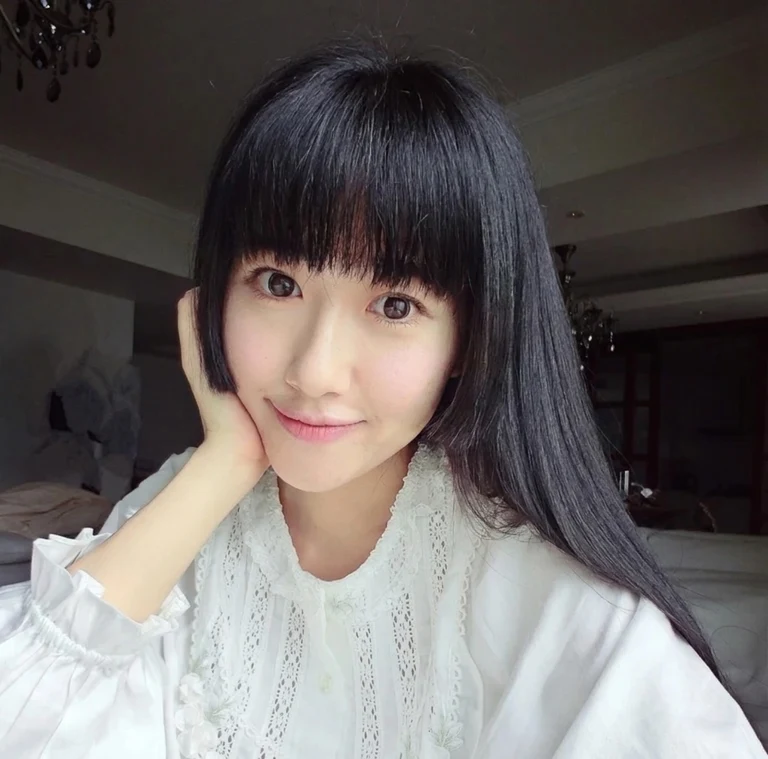
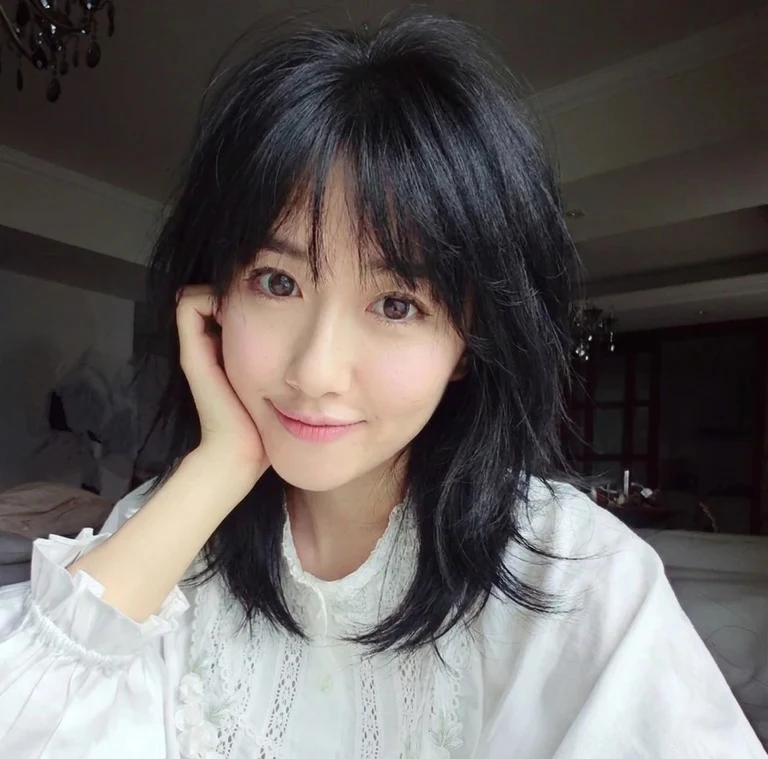
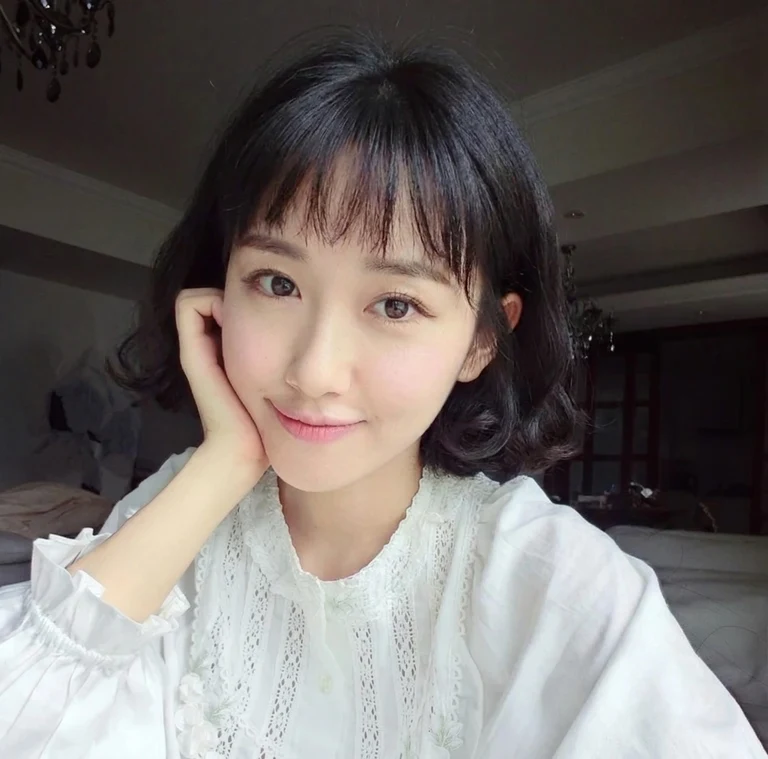
Bangs change the area closest to the eyes while allowing you to keep a longer overall style. Curtain bangs open through the middle and frame the sides of the face. In this example, the main difference is at the forehead and temples rather than a dramatic change at the shoulders.

What to compare

Switch between Original and AI preview to examine the parting and the edge of the fringe. Compare the open center of curtain bangs with a full blunt fringe. A hime cut adds a different decision: distinct shorter side panels alongside the longer hair.

Look at the full face as well as the fringe itself. AI can shift a few facial details, so use the original image to check that the apparent difference comes from the hair.

Try a look on your photo ↗
Curtain bangs hairstyle on the sample portraitOriginal portrait with long straight dark hairCurtain bangs
OriginalAI preview

Move the slider to compare. Arrow keys work, too.

A soft, face-framing fringe

Two more directions

Blunt bangs on our female sample model

Blunt bangs

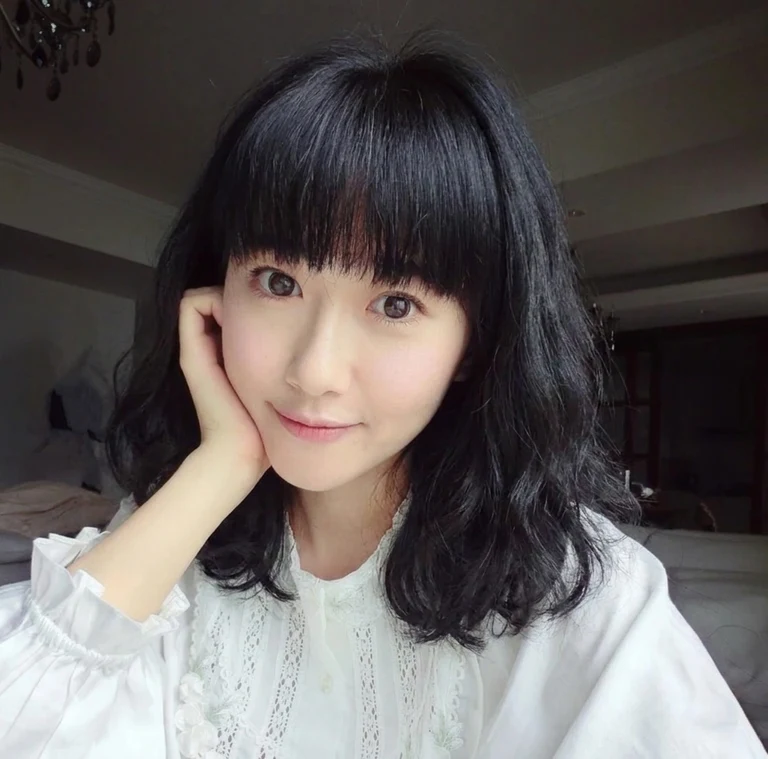
A full, straight-across fringe covers more of the forehead. Compare its weight and lower edge with the softer, open center of curtain bangs.

Hime cut on our female sample model

Hime cut

A hime cut combines a full fringe with cheek-length side panels. The contrast between those panels and the long sections gives it a more defined outline.

Sample portraits edited with the same flow as the tool above. Each before-and-after comparison uses one original photo. Your own result will depend on your photo and the cut you choose.

MEN / SHORTER SIDES, MORE POSSIBILITIES

A closer cut. A different silhouette.

See how the AI hairstyle changer edits men’s cuts on a separate male model and his matching original portrait. Look beyond the style name: compare the sides, the amount of forehead on show and the height through the top.

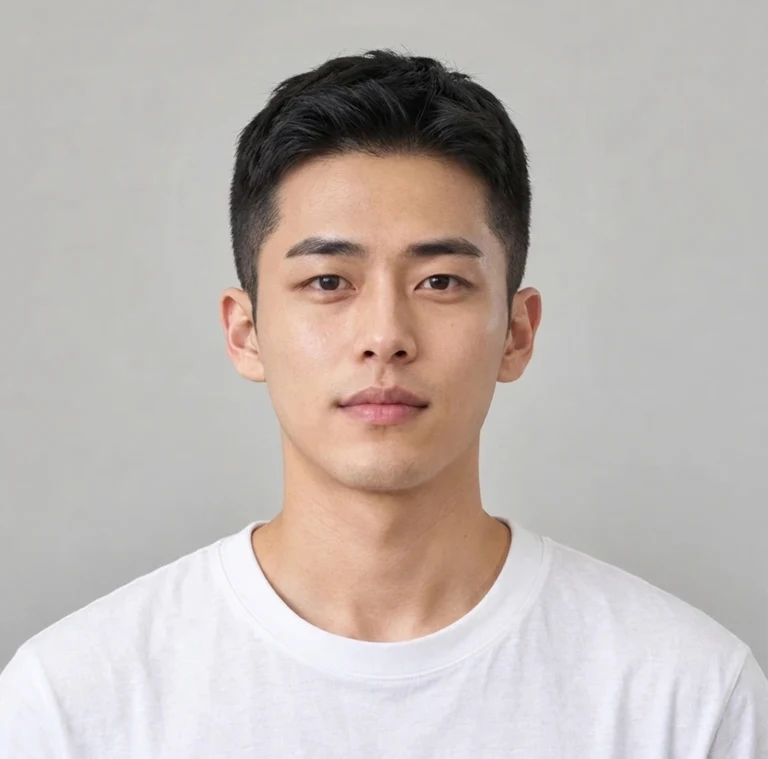
03 / Buzz cut

Compare close-cropped cuts on a male model.

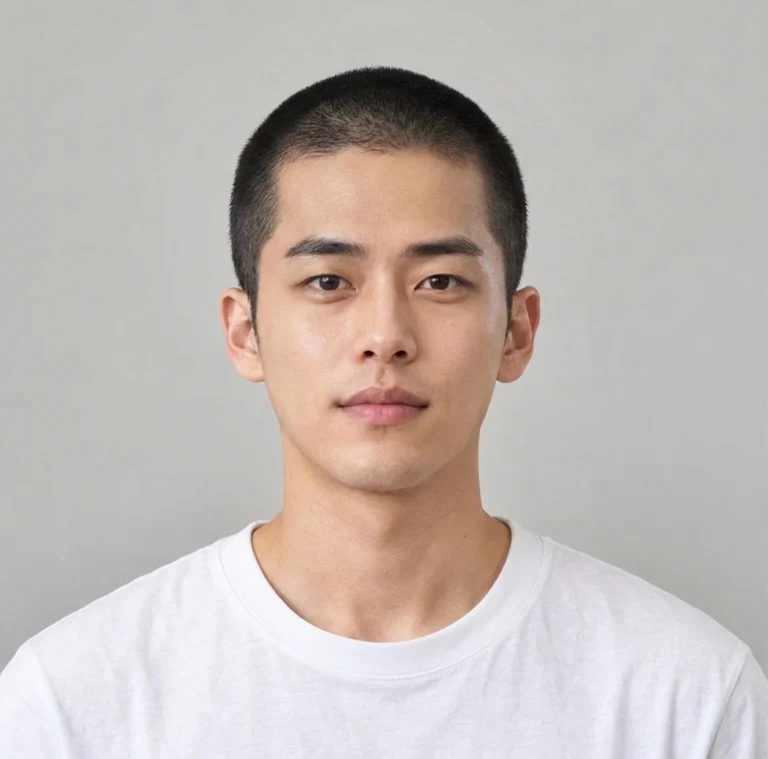
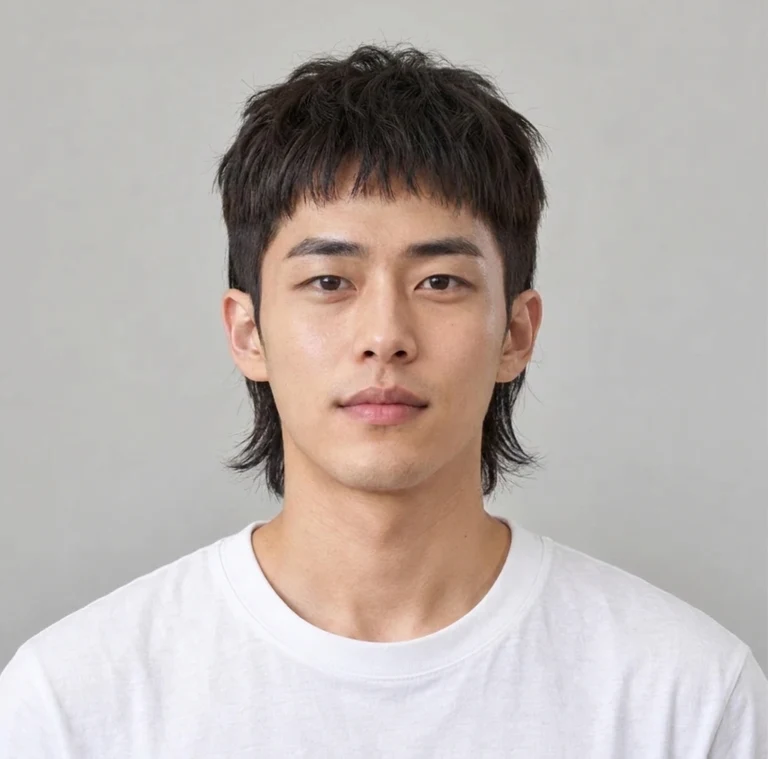
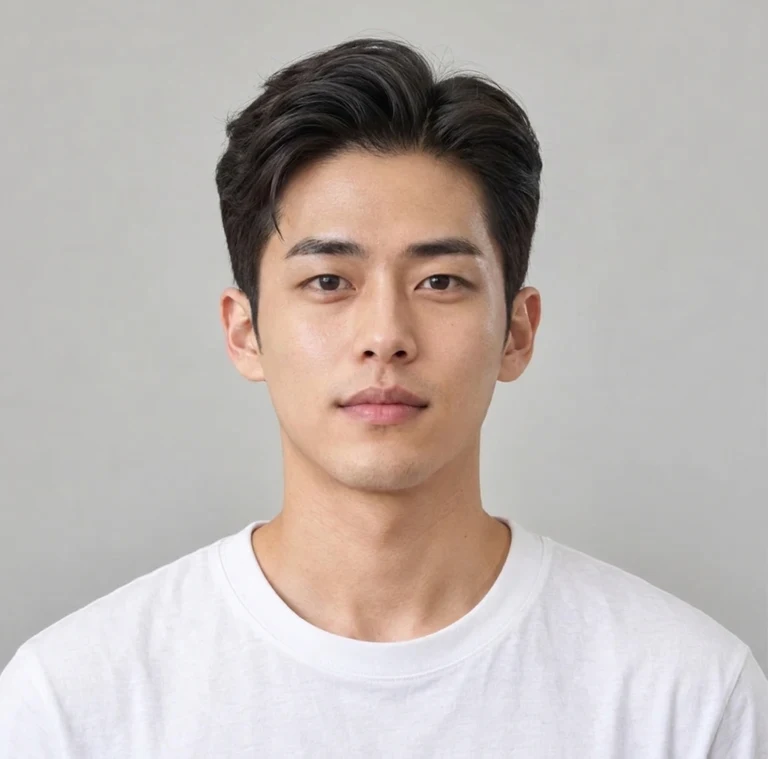
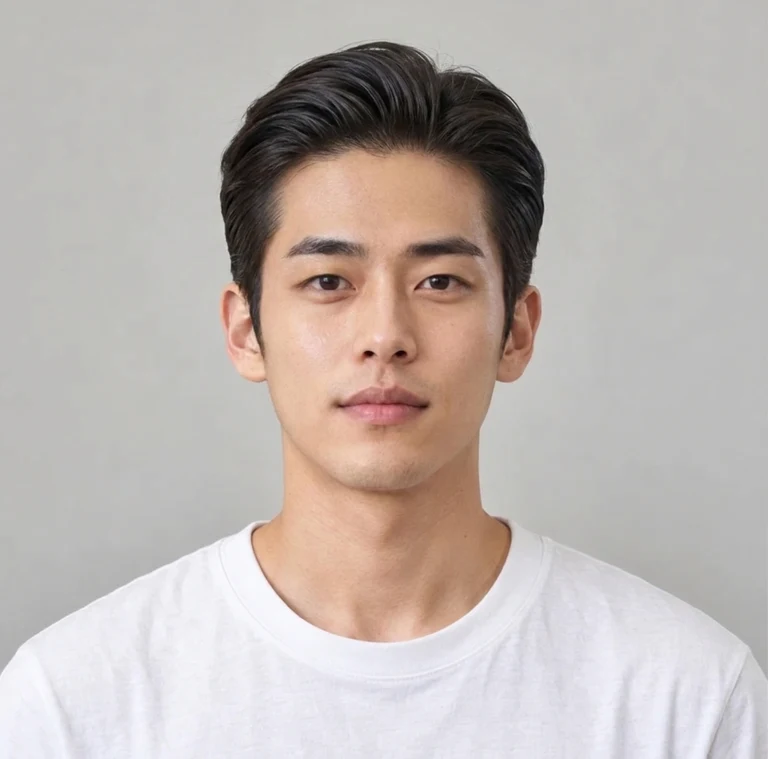
A buzz cut creates the clearest length contrast in the men’s collection. The longer original hair becomes a close, even crop, leaving the hairline and head outline much more visible. Use the comparison to explore that overall change before looking at small differences in the top or sides.

What to compare

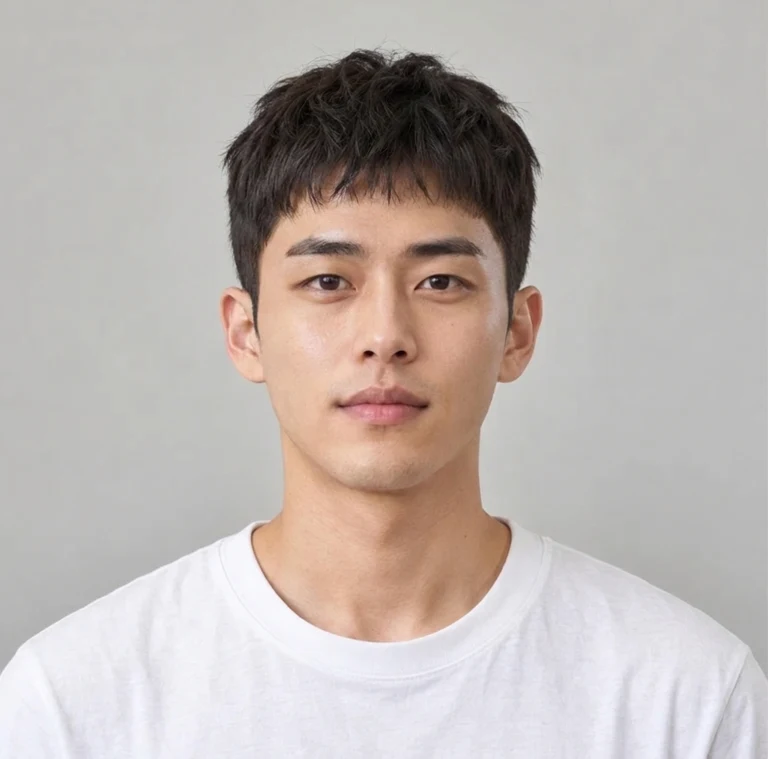
Check the forehead, temples and area above the ears. Then look at a crew cut and a textured crop: both keep more shape through the top than the buzz-cut example. The crop also brings a fringe toward the front instead of clearing the whole forehead.

These examples illustrate the named styles rather than an exact clipper setting. Bring your preferred image to a barber and discuss the length and transition you want on your own hair.

Try a look on your photo ↗
Buzz cut hairstyle on the sample portraitOriginal male portrait with medium-length dark hairBuzz cut
OriginalAI preview

Move the slider to compare. Arrow keys work, too.

An even, close-cropped length

Two more directions

Crew cut on our male sample model

Crew cut

A crew cut keeps a short, graduated top above closer sides. It offers a different outline from an even all-over crop without retaining much length.

Textured crop on our male sample model

Textured crop

A textured crop adds a more visible fringe and broken-up shape through the top. Compare the front edge rather than judging only the short sides.

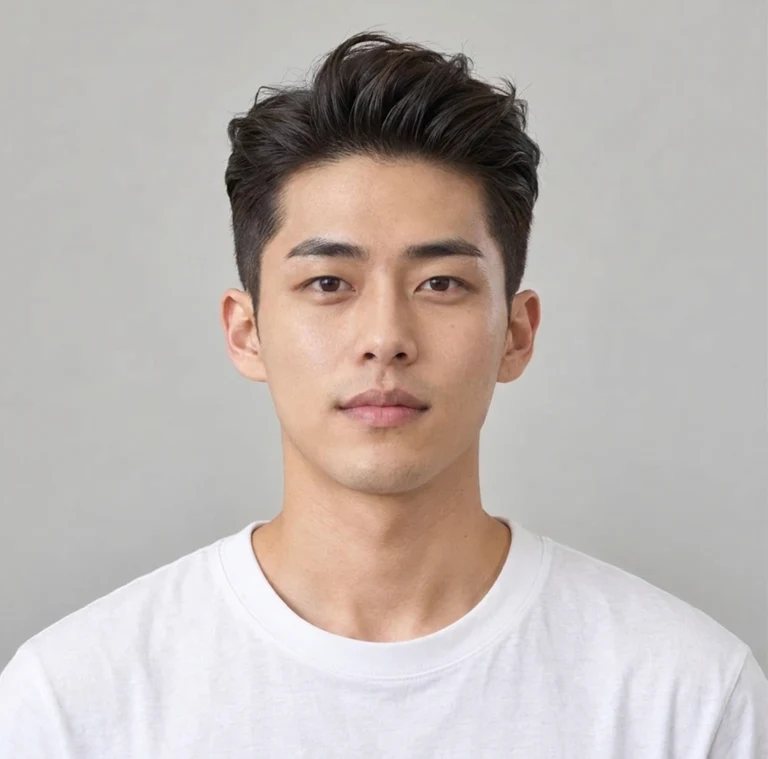
04 / Textured quiff

Explore height, contrast and a longer back.

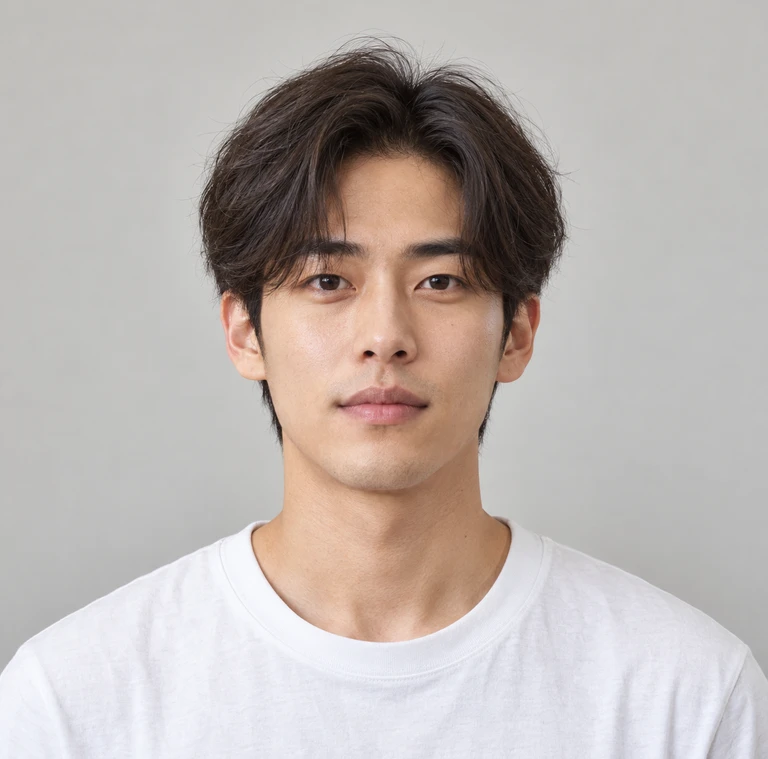
The textured quiff example lifts the front while keeping a shorter shape at the sides. Compared with the original middle part, the forehead is more open and the upper outline rises above the face. This is a useful contrast if you want to explore volume without starting with a much longer cut.

What to compare

Follow the slider across the top of the head to compare height and direction. An undercut changes the contrast between the longer top and shorter sides. A modern mullet keeps longer pieces toward the back, giving the lower outline a different shape beside the neck.

The photo is front-facing, so it cannot show every detail of a fade or the back of a mullet. Use it to shortlist a direction, then discuss the unseen angles and styling effort with a barber.

Try a look on your photo ↗
Textured quiff hairstyle on the sample portraitOriginal male portrait with medium-length dark hairTextured quiff
OriginalAI preview

Move the slider to compare. Arrow keys work, too.

Lifted front, tapered sides

Two more directions

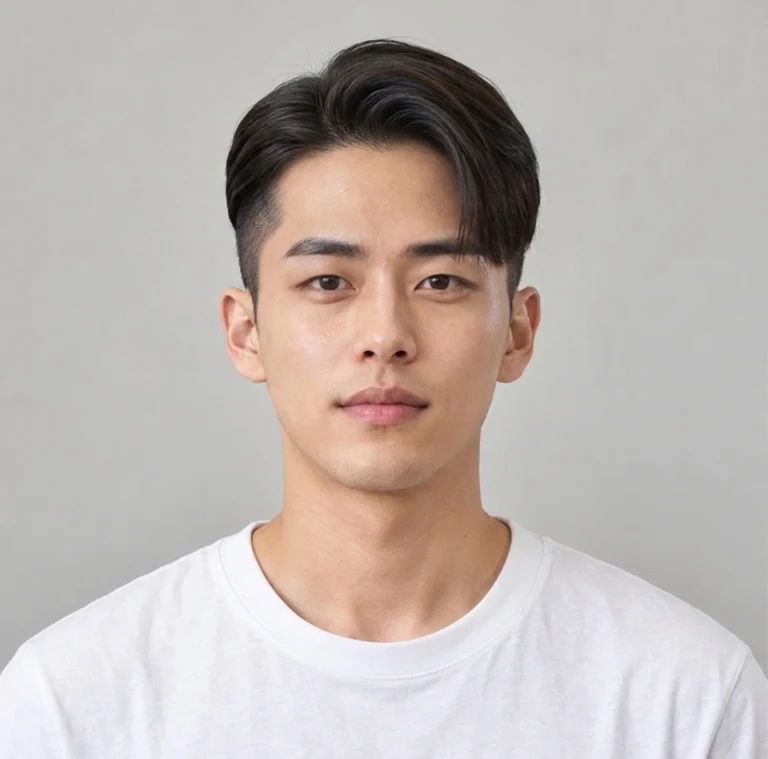
Undercut on our male sample model

Undercut

The undercut example separates a longer top from closer sides. Look at the transition near the temples and the direction the top is swept.

Modern mullet on our male sample model

Modern mullet

The modern mullet leaves longer hair toward the back. Compare the pieces beside the neck, while remembering that this front view cannot show the complete rear shape.

Sample portraits edited with the same flow as the tool above. Each before-and-after comparison uses one original photo. Your own result will depend on your photo and the cut you choose.

THE COMPLETE COLLECTION

One place to compare all 24 looks.

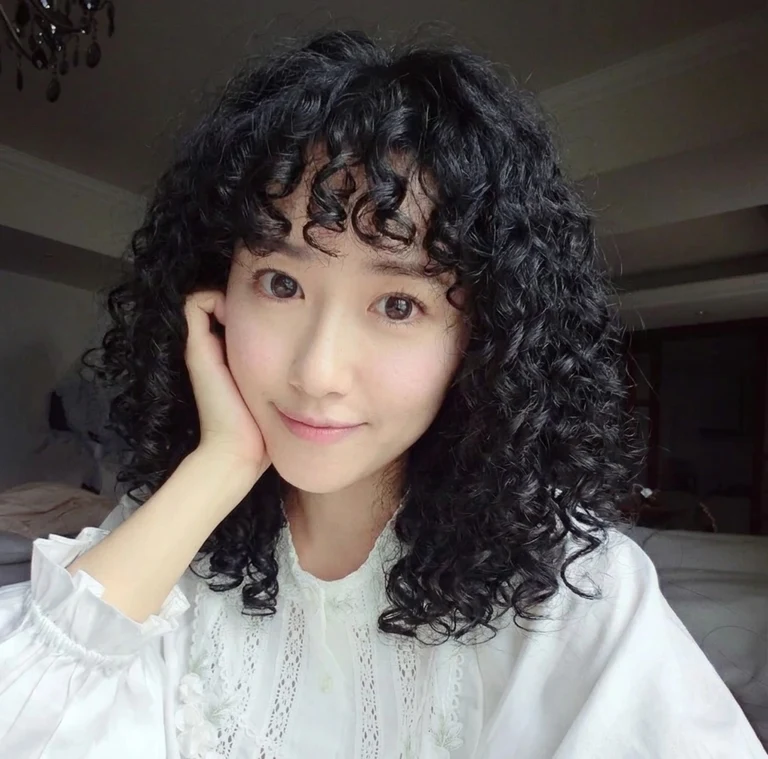
Browse all 24 looks from the AI hairstyle changer together, including waves, curls, layered cuts and shorter styles. Women’s looks use our female sample model; men’s looks use our male sample model. These are the same examples available in the selector above.

Women’s collection

Classic bob on our female sample model
Classic bob
Curtain bangs on our female sample model
Curtain bangs
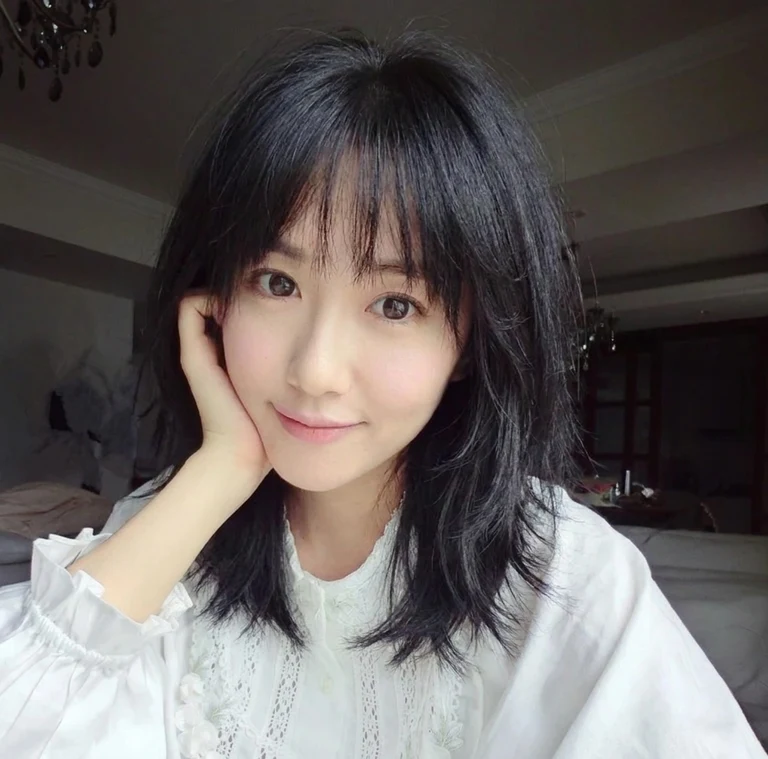
Wolf cut on our female sample model
Wolf cut
Soft waves on our female sample model
Soft waves
Pixie cut on our female sample model
Pixie cut
Tight curls on our female sample model
Tight curls
Long bob on our female sample model
Long bob
Blunt bob on our female sample model
Blunt bob
French bob on our female sample model
French bob
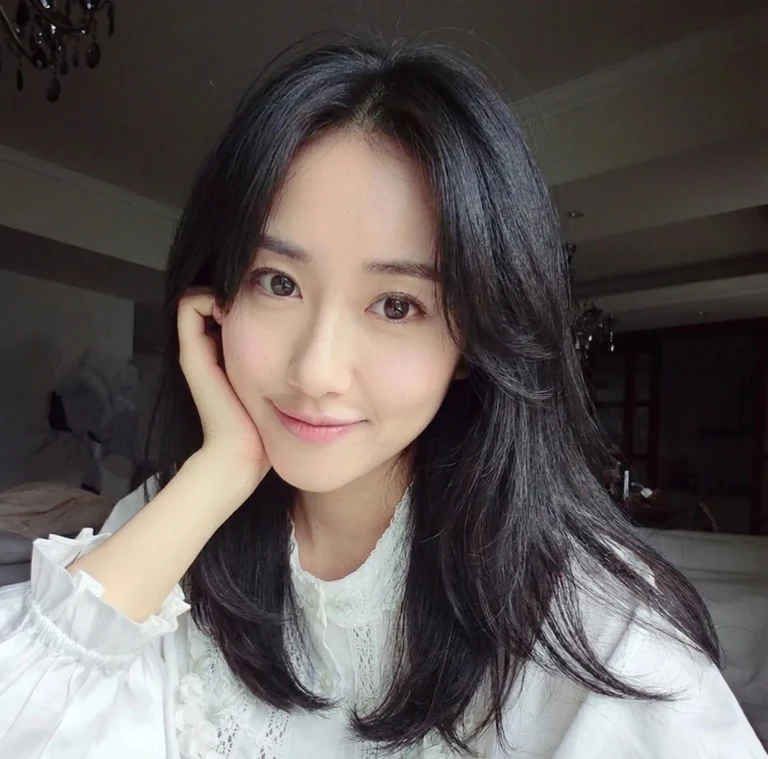
Long layers on our female sample model
Long layers
Modern shag on our female sample model
Modern shag
Hime cut on our female sample model
Hime cut
Blunt bangs on our female sample model
Blunt bangs
Side-swept bangs on our female sample model
Side-swept bangs
Beach waves on our female sample model
Beach waves

Men’s collection

Buzz cut on our male sample model
Buzz cut
Textured quiff on our male sample model
Textured quiff
Textured crop on our male sample model
Textured crop
Side part on our male sample model
Side part
Slicked back on our male sample model
Slicked back
Crew cut on our male sample model
Crew cut
Undercut on our male sample model
Undercut
Modern mullet on our male sample model
Modern mullet
Rounded afro on our male sample model
Rounded afro

Each result is an individual AI edit. Compare hair edges and facial details with the matching original in the tool before using a result as your reference.

Try a look on your photo ↗

MAKE THE PREVIEW USEFUL

A reference for a real decision.

Use a hairstyle changer to narrow down what you want to discuss, rather than expecting one image to answer every question about your hair.

01

Before a salon or barber appointment

Start with a recent portrait and try two or three clearly different cuts. Save the versions you like, then describe the specific parts: the length beside the jaw, the amount of fringe, the height on top or the contrast at the sides. Your stylist can help translate those visual preferences into a cut that works with your actual hair.

A small shortlist is easier to discuss than a folder of unrelated reference photos.

02

When you want a smaller change first

Keep the same uploaded photo and compare a nearby option before a dramatic one. For example, look at long layers and a long bob before a pixie, or a side part before a buzz cut. Changing one idea at a time makes it easier to work out whether you prefer a different length, a different fringe or simply a different direction.

Generate each personal preview separately; browsing the example collection stays free.

03

When two options are hard to choose between

Use the same source photo for both previews so the pose and lighting stay comparable. Download each result and place them beside the original. Look at the complete silhouette first, then inspect the hairline and edges. If a facial detail has shifted, avoid using that difference as a reason to prefer one cut over the other.

The tool keeps results available while you switch styles in the current session. Save the ones you want before leaving.

How to use the AI hairstyle changer

  1. Start with a clear portrait

    Choose a well-lit photo of one person. Keep your head upright and leave room around the hair. Hats, heavy shadows and hands covering the face make editing harder.

  2. Try one cut at a time

    Use All styles, Women or Men to find a starting point, then browse by cut type. Preview the sample pictures without spending credits. When you are ready, generate one personal edit from your own portrait; the current credit cost is shown before you start.

  3. Compare, then save

    Slide between the original and the AI preview, or view either photo on its own. Download the result as a visual reference for your next salon conversation.

A BETTER STARTING PHOTO

Give the edit a clear view of your hair.

A clear portrait helps the AI hairstyle changer work with the area you want to change. You do not need a studio photo. You do need a useful view of one face and the hair around it.

Choose a photo and try a look ↗

Leave space around the whole head

Include the crown, both sides of the hair and enough room below the chin. A tight crop can hide the existing length or leave little room for a fuller silhouette. Keep your head upright and use a front-facing view when possible.

Use even light and an unobstructed face

Choose a photo where you can see the hairline and the outline beside the cheeks. Heavy shadows, a hat, hair covering the eyes or a hand across the face make those areas harder to judge. Avoid beauty filters if you want a useful comparison with your normal appearance.

Check the file before uploading

The tool accepts JPG, PNG and WebP files up to 8 MB. Each side must be at least 256 pixels, and the image must be no larger than 40 megapixels. Use a clear original rather than a small screenshot or a heavily compressed social-media thumbnail.

Compare from the same starting point

Keep the original portrait when trying another cut. A new camera angle, expression or lighting condition can change the impression of a result. The generated image may still alter fine details, so inspect it beside the original instead of treating it as an exact prediction.

A preview, not a promise.

An AI hairstyle preview can help you explore shape and length. It cannot predict how a cut will sit on your natural texture, hair density or growth pattern. Ask a stylist what is achievable for your hair.

A few things before the haircut.

How does the AI hairstyle changer work?

Browse the 24 style examples and select a haircut. This hairstyle changer uses AI to create a personal preview from your uploaded portrait. The edit is instructed to preserve your facial identity, original hair color, pose and background. Compare the result with your original before downloading it.

Can I try hairstyles for men and women?

Yes. Switch between Women and Men to browse 24 looks, from bobs, layers and bangs to buzz cuts, quiffs, undercuts and mullets. Each collection has its own sample model. These categories help you browse; any hairstyle can be tried on your own portrait.

Is it free to try a hairstyle?

Browsing the examples and using the comparison viewer is free. Creating a new AI preview requires an account and credits. The current credit cost is shown on the generate button area before you start. Failed edits are refunded.

Will my face stay exactly the same?

The edit is instructed to preserve your identity, but AI may still change small facial details, hair edges or background areas. Treat the output as inspiration rather than a precise prediction or an identity photo.

Does it process the photo locally?

No. Your photo is previewed in your browser, then uploaded for server-side AI editing when you choose to generate. The generated image is saved with your account and is not automatically added to a public showcase. See our Privacy Policy for data handling details.

Can I use it on my phone?

Yes. Tap any hairstyle thumbnail to see a larger style example. Upload a photo from your phone when you are ready to try it on yourself. After generation, use the slider or Original and AI preview buttons to compare, then download the result.

Can I compare a bob, a pixie and long layers on the same photo?

Yes. Keep your uploaded portrait in place and select another style. Each new personal result requires its own generation and credits. Switching between already generated cuts in the current session lets you revisit those results. Download the images you want to keep before reloading or leaving the page.

Does the preview change my hair color too?

The presets ask the edit to preserve your original hair color while changing the cut or shape. They are intended for comparing hairstyles, not for selecting a new dye color. AI may still shift color slightly because it reconstructs hair strands and lighting. Check the result against the source photo.

Can this choose the best cut for my face shape?

The page lets you compare options visually. It does not measure your face shape, diagnose your hair type or rank cuts for you. Look at the examples, try the directions that interest you, and use the result as a reference when discussing your natural texture, growth pattern and preferences with a stylist.

What should I do if the preview looks wrong?

Check that your source photo shows one clear face with the whole hair outline in view. Try a less obstructed portrait if needed. A completed edit can still have imperfect facial details or hair edges; the automatic refund applies when an edit fails, rather than to every result you decide not to use.

A little more room to create.

AI image editor ↗Make other edits to your photos.PhotoCraft editor ↗Crop and refine images in your browser.
LogoNano Photo AI

Nano Photo AI — Making AI Photo and Video editing simple and efficient

GitHubGitHubTwitterX (Twitter)DiscordYouTubeYouTubeEmail

0.1%
of purchases contributed to Stripe Climate

Stripe Climate Logo

Nano Photo · Product

  • Features
  • Pricing
  • FAQ

Nano Photo · Resources

  • Blog
  • Documentation
  • Changelog
  • Affiliates
  • YouTube Trends Today

Nano Photo · Company

  • About
  • Contact
  • Waitlist

Nano Photo · Legal

  • Cookie Policy
  • Privacy Policy
  • Terms of Service

All creative tools

Video generation

  • WAN 3.0
  • ByteDanceSeedance 2.5
  • H3 Max Turbo
  • GeminiVeo 3.1
  • ByteDanceSeedance 2.0
  • Kling 3.0 Motion Control
  • Kling 2.6 Motion Control
  • MiniMax H3
  • Happy Horse 1.1

Image creation

  • Nano Banana
  • Nano Banana 2
  • ByteDanceSeedream 5.0 Pro
  • ByteDanceSeedream 5.0 Lite
  • GPT Image 2
  • GPT Image 2.5
  • Remove background
  • Upscale image
  • AI hairstyle changer
  • PhotoCraft Online Free
  • FigCraft UI design

Video tools

  • Video Reverse
  • FilmCraft Online Free
  • OpenCut Online Free
  • Video Translation
  • Video watermark remover
  • AI Video Subtitle Remover
  • AI Video Enhancer
  • Instagram Transcript Generator

Creator support

  • ByteDanceSeedance 2.0 Prompt Generator
  • Nano Banana Pro Prompt Generator
  • Seed Audio

Inspiration & utilities

  • AI Video Showcase
  • Nano Banana Pro Prompt Market
  • Image Converter Suite
  • YouTube Trends Today
  • Documentation
  • Changelog
Video generation
  • WAN 3.0
  • ByteDanceSeedance 2.5
  • H3 Max Turbo
  • GeminiVeo 3.1
  • ByteDanceSeedance 2.0
  • Kling 3.0 Motion Control
  • Kling 2.6 Motion Control
  • MiniMax H3
  • Happy Horse 1.1
Image creation
  • Nano Banana
  • Nano Banana 2
  • ByteDanceSeedream 5.0 Pro
  • ByteDanceSeedream 5.0 Lite
  • GPT Image 2
  • GPT Image 2.5
  • Remove background
  • Upscale image
  • AI hairstyle changer
  • PhotoCraft Online Free
  • FigCraft UI design
Video tools
  • Video Reverse
  • FilmCraft Online Free
  • OpenCut Online Free
  • Video Translation
  • Video watermark remover
  • AI Video Subtitle Remover
  • AI Video Enhancer
  • Instagram Transcript Generator
Creator support
  • ByteDanceSeedance 2.0 Prompt Generator
  • Nano Banana Pro Prompt Generator
  • Seed Audio
Inspiration & utilities
  • AI Video Showcase
  • Nano Banana Pro Prompt Market
  • Image Converter Suite
  • YouTube Trends Today
  • Documentation
  • Changelog
History tools

Video generation

  • SoraSora 2

Video tools

  • Remove Sora Watermark

Creator support

  • SoraSora Storyboard
  • TVC Ad Maker
  • Sora 2 Prompt Generator
© 2026 Nano Photo AI. All rights reserved.