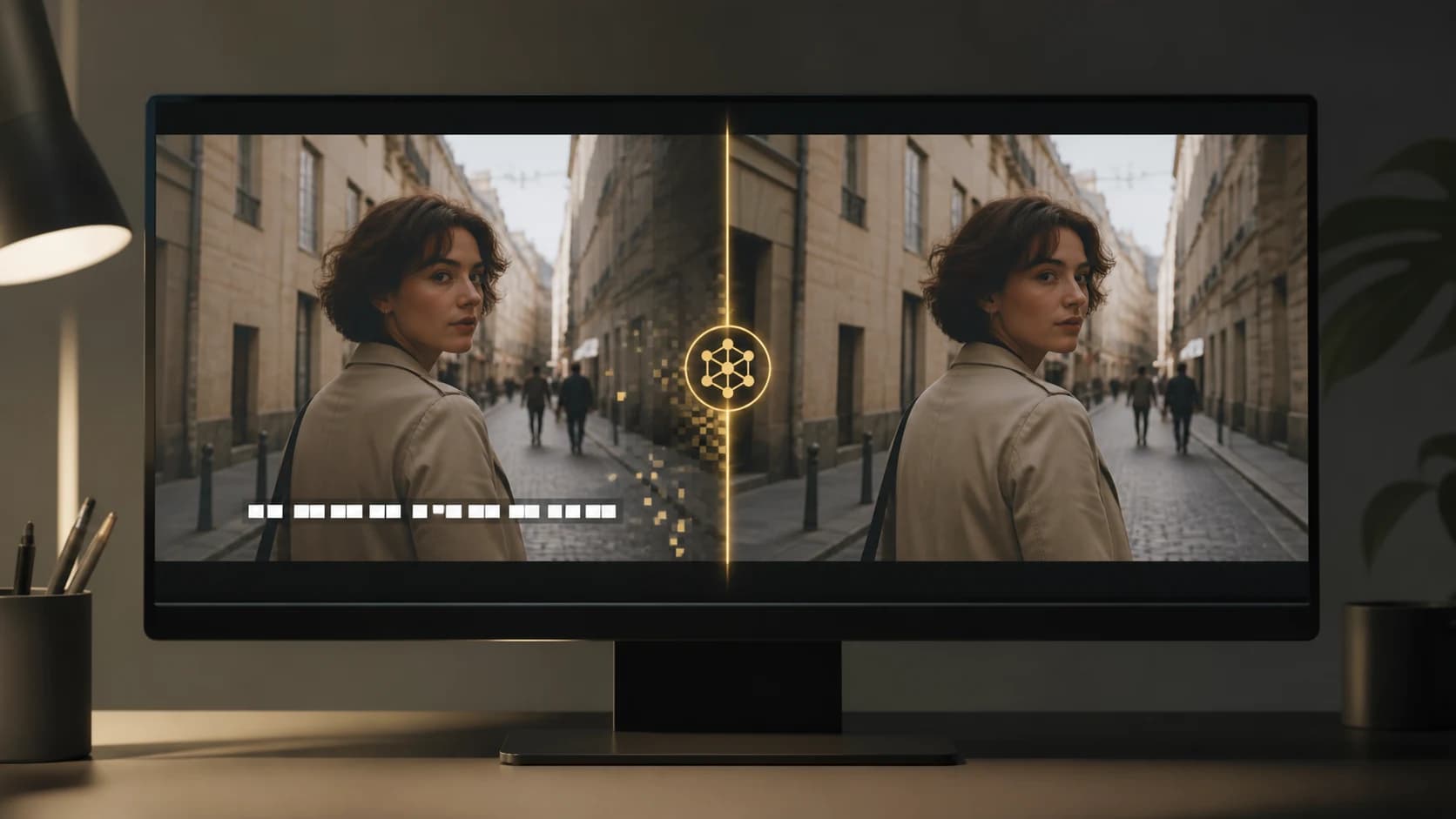
How to Remove Text from a Video: 4 Practical Methods
Learn how to remove text from a video by deleting subtitle tracks, cropping, covering, or cleaning burned-in captions with NanoPhoto.AI.
Text in a video can be easy to remove, or surprisingly stubborn. The difference is not the editing app. It is how the text got into the video.
A separate subtitle track can usually be switched off in seconds. Burned-in captions are different: they are part of every frame, just like a face, a wall, or a patch of sky. Removing them means rebuilding the pixels underneath.
This guide explains four practical approaches and shows how to use NanoPhoto.AI when the text is a hardcoded subtitle or caption.
Quick answer: choose the method by text type
First, pause on a frame where the text is visible. Then scrub a few seconds forward and backward.
| What you see | Best first method | Main trade-off |
|---|---|---|
| A subtitle track you can turn off | Disable or delete the track | Only works when captions are stored separately |
| Text sitting at the top or bottom edge | Crop the frame | Changes the composition or aspect ratio |
| A small label over an unimportant area | Cover or blur it | The patch remains visible |
| Burned-in subtitles over changing footage | AI video inpainting | Results depend on motion and the hidden background |
If the captions are baked into the picture, try the AI video subtitle remover. It is built for hardcoded subtitles rather than editable text layers.
Is the text separate or burned into the video?
This check saves time. Open the video in a player or editor and look for a captions or subtitles control.
If switching that control off makes the text disappear, the captions are a separate track. You do not need AI cleanup. Delete or disable the track when exporting. YouTube's caption help describes the same distinction for captions attached to an uploaded video.
If the text remains visible with captions turned off, it is probably burned in. Old campaign copy, translated dialogue, date stamps, and reposted social captions often arrive this way. There is no clean text object to delete. The editor has to crop, hide, or reconstruct the covered area.
One more distinction matters: NanoPhoto.AI's subtitle tool is designed for captions and subtitles. If the problem is a logo or watermark, use an AI video watermark remover and only edit footage you own or are authorized to modify.
How to remove burned-in text with NanoPhoto.AI
The screenshots below were captured from the live NanoPhoto.AI page on August 13, 2026. They show the public interface and its built-in demo. They are not presented as a new independent processing test, so this guide does not claim a measured processing time, success rate, or output resolution.
1. Open the tool and choose your input
Go to NanoPhoto.AI's video subtitle remover. Use Upload video for a file on your device. The current page accepts MP4, MOV, and WebM files up to 300 MB and five minutes.

Use a short test clip first. Pick a section that includes movement, a detailed background, and at least one moment when the caption crosses an important subject. That small test reveals more than processing an easy frame with a flat wall behind the text.
2. Paste a public video URL when the file is already online
Select Video URL if the source is already hosted. The address must be a public HTTPS video URL that the server can access. A normal webpage link is not necessarily a direct video link.
The Use demo button fills the field with NanoPhoto.AI's own sample video. It is useful for learning the controls before using your footage.

The tool requires a login before it starts a real cleanup task. The live page also shows the current free allowance or credit estimate. Those limits can change, so check the figure shown beside the form instead of relying on an old screenshot.
3. Start the cleanup and wait for processing
Click Remove subtitles after checking the source. AI then looks for caption regions across the clip and reconstructs the covered background from nearby visual information.
This is more involved than deleting a text layer. Each frame can contain different motion, light, and texture. Processing time will vary with the clip, and a finished job still needs a visual review.
4. Compare the original and clean result
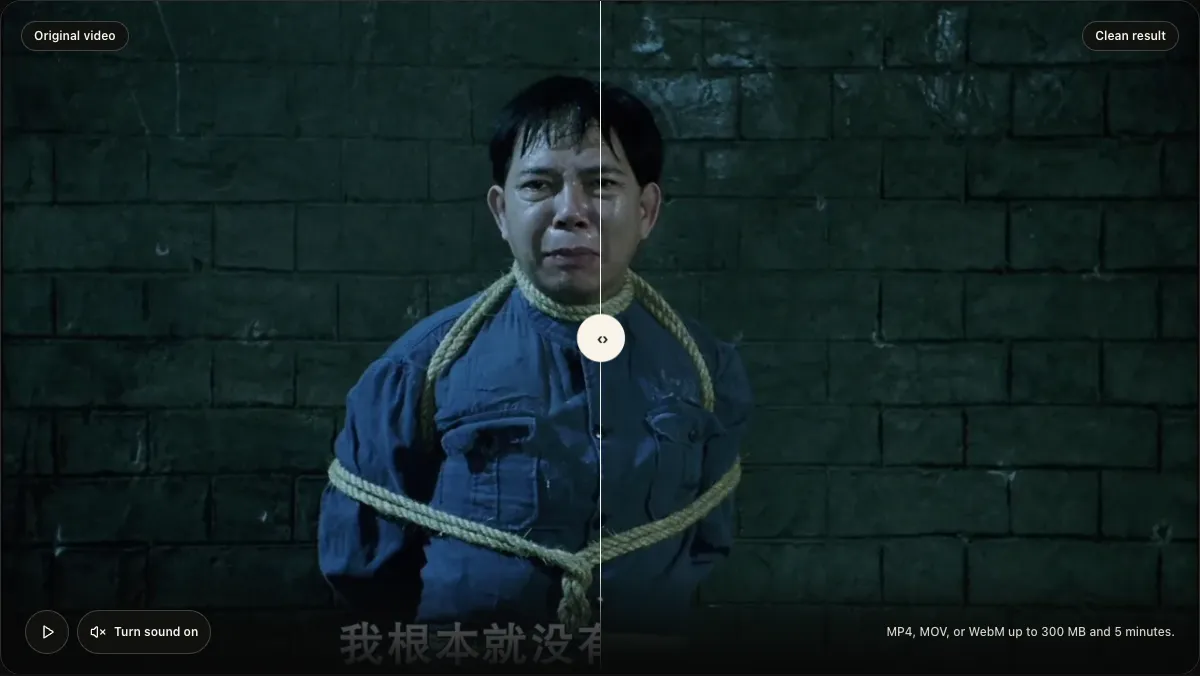
NanoPhoto.AI places the original and cleaned versions in one comparison view. Drag the divider instead of checking only a single paused frame. Look at the beginning and end of each caption, then inspect moments with fast motion or camera cuts.
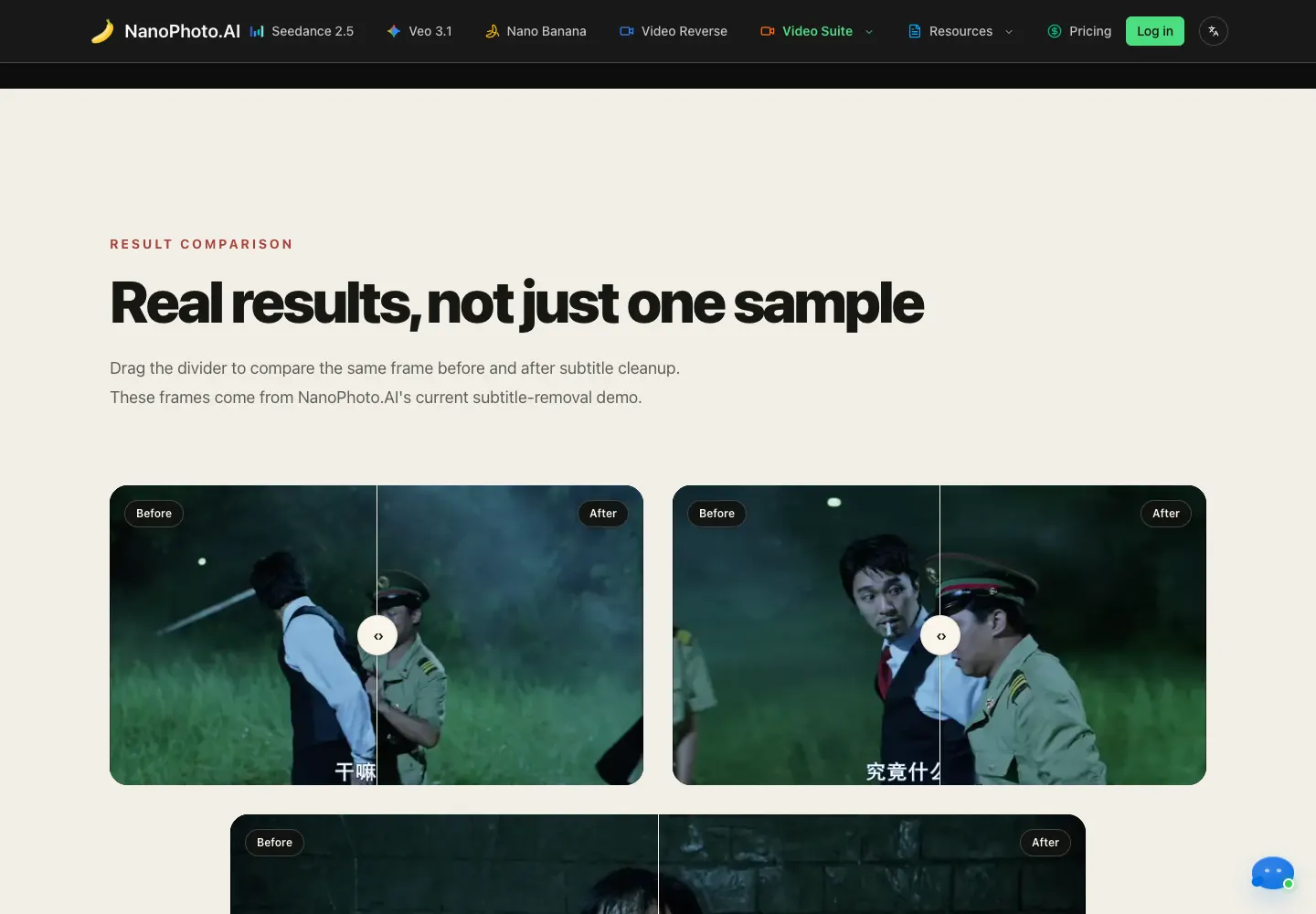
The page's result gallery uses the same before-and-after control. In the live check, the divider responded as expected and exposed different portions of the same frame.
When your task finishes, review the full clip and download the MP4. The product page says the timing and audio track are kept, although re-encoding may change the bitrate or file size. Preview the downloaded file before deleting the source.
Other ways to remove text from a video
AI inpainting is useful, but it is not always the fastest answer.
Delete a subtitle track
Use this when the text is stored separately from the picture. It is the cleanest method because no video pixels need to change. In most editors, look for a subtitle, caption, or text track in the timeline and disable it before export.
Crop the frame
Cropping works well when the text stays close to one edge and the remaining composition still looks natural. It is quick and predictable. The cost is a tighter frame, and you may need to resize the result for its final platform.
Cover or blur the text
A solid patch, graphic, or blur is reasonable when the goal is privacy rather than an invisible repair. Track the overlay if the camera moves. This approach is often better for a small timestamp or name tag than asking AI to invent a detailed background.
Mask and fill the area manually
Desktop editors offer frame tracking and content-aware fill for harder shots. Adobe explains that Content-Aware Fill for video analyzes frames over time and can use a manually prepared reference frame. It gives an editor more control, but detailed textures, changing light, and objects crossing the mask can require cleanup by hand.
What affects AI cleanup quality?
The hardest clips usually have one of these problems:
- The text crosses a face, a product, fingers, or another subject viewers examine closely.
- The background changes quickly because of camera movement, cuts, flashing light, or moving objects.
- The subtitle block covers a large part of the frame.
- The hidden area contains fine patterns such as hair, fabric, brick, grass, or reflections.
AI can reconstruct a plausible patch, but it cannot recover pixels that were never stored in the file. That difference matters. Watch the cleaned region during motion and look for smearing, texture that swims, repeated patterns, or edges that flicker.
For localization work, keep the cleaned clip as a master, then translate the cleaned video or add a new subtitle track. Keeping new captions separate makes the next revision much easier.
A sensible review checklist
Before publishing, watch the exported video once at normal speed and once frame by frame around each removed caption. Check subject edges, background texture, camera cuts, audio sync, and the first and last frame where the old text appeared.
Also compare the downloaded file with the source duration. If the cleaned area looks unstable, try a shorter section, crop the frame, or move to a manual mask-and-fill workflow. A visible crop is often less distracting than a repair that flickers.
Frequently asked questions
Can AI remove any text from a video?
No. Results are most predictable for burned-in captions over backgrounds the model can infer from nearby frames. Text that covers a face, a detailed product, or fast-changing motion is harder. NanoPhoto.AI's subtitle remover also does not provide a brush for selecting arbitrary logos or signs.
What is the difference between removable subtitles and burned-in text?
Removable subtitles are stored as a separate track and can usually be disabled without changing the picture. Burned-in text is part of every video frame, so the covered pixels must be cropped, hidden, or reconstructed.
Can I remove text without blurring the video?
Yes, video inpainting attempts to rebuild the background instead of blurring it. The result still depends on how much detail the text covers and whether that area changes during the shot.
Which files does NanoPhoto.AI accept?
At the time of this page check, the upload form listed MP4, MOV, and WebM, with a 300 MB file limit and a maximum duration of five minutes. The URL option accepts a public HTTPS video address.
Will the audio and timing stay the same?
The NanoPhoto.AI page says the cleaned video keeps the original timing and audio track. Because the video is re-encoded, its bitrate or file size may change. Review the downloaded result before publishing it.
Is the video text remover free?
The live tool shows the current daily allowance and credit estimate beside the form. Short videos may qualify for that allowance when it is available. For the latest terms, check the tool itself or the current credit pricing.
Final recommendation
Use the least complicated method that fits the source. Delete a separate caption track when one exists. Crop edge text when the composition allows it. Use a cover when invisibility does not matter. For hardcoded subtitles that need a full-frame repair, run a short representative clip through NanoPhoto.AI, inspect motion rather than one still frame, and keep the original file until the cleaned export passes review.
Author

Categories
More Posts

Meigan AI 2026 Review: A Hands-on MeiGen Tutorial
A real MeiGen walkthrough with screenshots: choose a prompt, generate a product photo, inspect the result, and understand credits, pricing and limitations.
Hands-on Review: I Used NANO PHOTO to Turn an Idea into Video + Images (Sora 2 / Veo 3.1 / Nano Banana Pro)
From zero-friction onboarding and prompt assistance to credits and pricing logic—this is a real-user walkthrough end to end.

Remove burned-in subtitles without cropping
Keep the full frame when removing burned-in subtitles. Learn how to choose a test clip, inspect motion artifacts, and check the downloaded video.
Newsletter
Join the community
Subscribe to our newsletter for the latest news and updates